
Configuring Redsys and Bizum as Payment Methods in Printspot
What is Redsys?
Redsys is a Spanish company that provides electronic payment services, especially focused on credit and debit card transactions. It functions as a secure payment gateway that connects merchants and financial institutions, facilitating the processing of electronic transactions in different types of businesses, both physical and online. It offers a wide range of solutions for payment processing, including point of sale terminals (POS), virtual payment gateways, and other services related to financial transaction management.
How does it work?
The integration process with Redsys generally follows these steps:
- Registration and contract: The merchant interested in using Redsys services must register and sign a contract with the company. During this process, the terms and conditions of the service are established, as well as the specific details of the integration.
- Account configuration: Once registration and the contract are complete, the necessary access credentials are provided to the merchant to configure their account in the Redsys system.
- Testing and certification: Redsys provides a test environment that replicates the production environment for testing. Once the tests are passed, certification by Redsys proceeds. For testing, Redsys provides a series of data, which are the ones we will have to configure in our Printspot store:
- The FUC or merchant number
- The terminal number
- The secret key (SHA-256)
You have to access the section Settings – Payments – Configure and here the payment methods available for the Printspot store will appear:
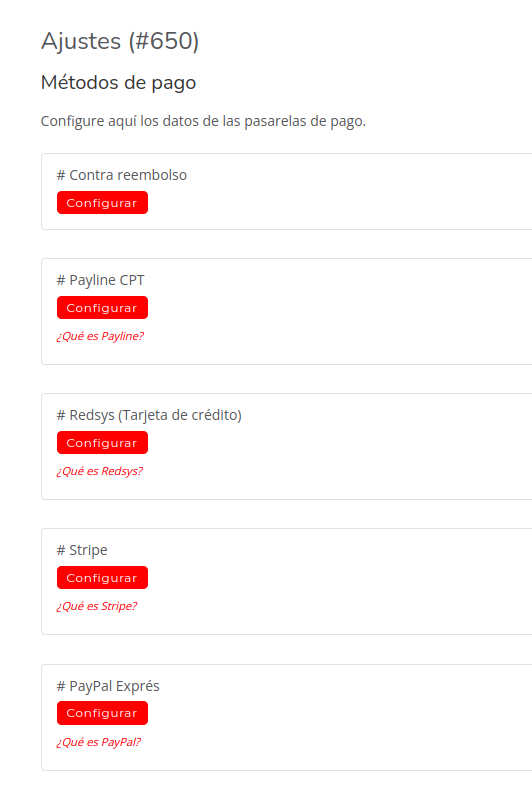
You must click the Configure button in the Redsys (Credit card) section to access its configuration:
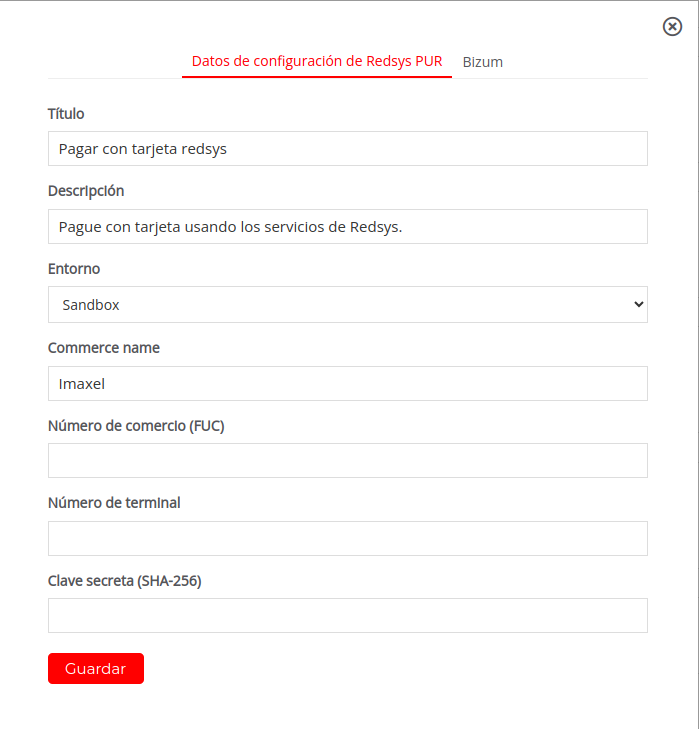
- Here we find:
- Title: This is the title of how this payment method will appear in the purchasing process
- Description: This is a brief description that will accompany the title in the purchasing process
- Environment: Where we have a dropdown list that allows us to select whether we operate in the test environment (Sandbox) or the production environment (Production)
- Merchant Name: Provided by Redsys
- Merchant Number or FUC: Provided by Redsys
- Terminal Number: Provided by Redsys
- Secret Key: Provided by Redsys
Once the test credentials are implemented, a test order must be placed. To do this, access your store and place an order using Redsys as the payment method. In the same documentation they provide, they will supply card details to simulate the purchase. You can follow our guide to place your first order in Printspot if you haven’t done so yet
- Go-live: Once you have completed the test and verified that the test payment has been registered in the Redsys web environment (you will find the access credentials in their documentation), you must request the step to production. For this, they will send you new credentials that you must enter exactly as you did with the test environment, but now selecting the Production option in the Environment dropdown.
Payment with Bizum
In the other tab of the Redsys configuration, we see that we can define the configuration for the Bizum payment method:
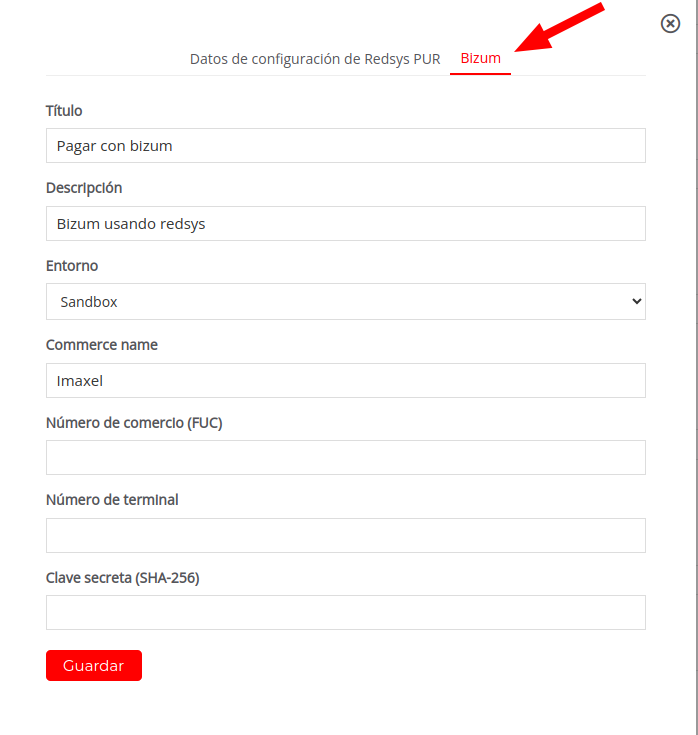
The configuration screen is exactly the same as that of Redsys using a credit card. If you have a single Redsys integration, the same credentials must be entered as in the previous tab, Redsys PUR configuration data.
For the moment, the Bizum payment method is only available for the Redsys payment gateway, meaning that if you want your customers to be able to pay with Bizum in your Printspot, you will need to use the Redsys gateway.
ATTENTION! To be able to use the Bizum payment method, you must speak to your bank, as it is a functionality that needs to be activated in Redsys.