
How to Manage Distribution Rules
The operation of the distribution rules is based on assigning orders to an account taking into account selection criteria.
These selection criteria are values that we configure in the # REF and/or COMPANY NAME fields. These values must match in the different back offices of the printspot, frontstation, or web solutions.
Definitions in the Distribution Rule
- Receiver Account. Store that must download the orders, and
- Sender Account that is the one sending the orders (for example, the kiosk system).
To create distribution rules, we have two menus in the Product BackOffice:
- Accounts (account details for each store)
- Distribution Rules (configuration of order distribution rules for each store)
Steps to follow:
- Register an account for each store
In the Accounts menu, we must register an account for each store.
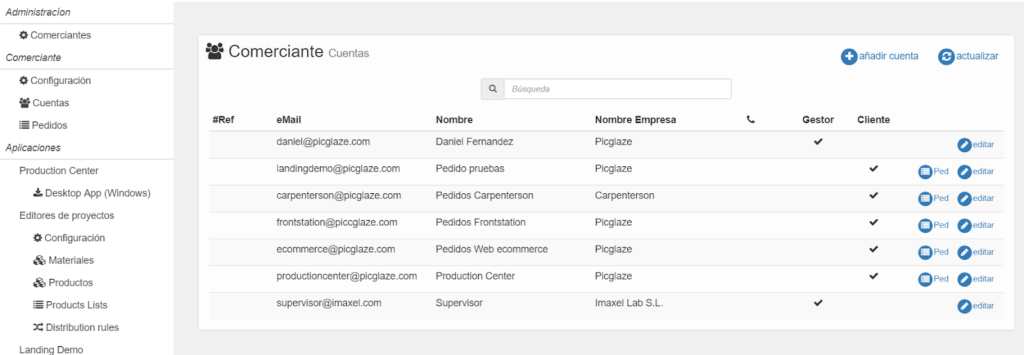
By clicking on “ADD ACCOUNT”, a form will appear which we will have to fill in with the details of each store.
The details of each account will be used for configuring the order distribution rules and for configuring the Production Center order download program.
The data we must configure is the following:
Email and Password: Used to configure the Production Center order download program.
Name: Name of the store.
Company Name: Name of the company. A numerical code can also be used to identify it.
This data will help us know the code we will have to use later in the order distribution rule.
#Ref: we will use a store code for reference.
- Create distribution rules
Using a rule system, we can route orders to a receiver based on certain criteria, for example, the #Ref value or the Company Name field value.
In our case, the criteria for filtering orders will be by the store code (#Ref) and certain product codes that the store can print.
The operation of the distribution rules is based on two figures or types of accounts:
- Receiver: The receiver is the store’s account that has to download the orders.
- Sender: Account used for sending orders (for example, the frontstation kiosk system)
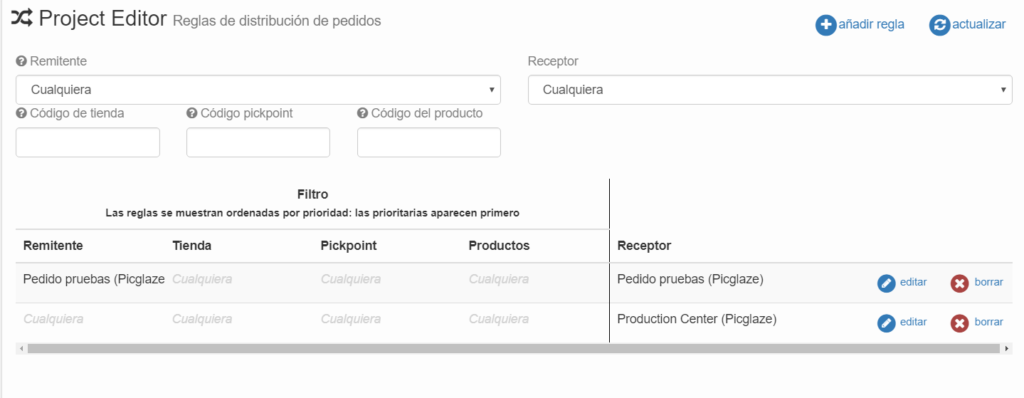
When adding a new rule, a menu will appear where we will have to select a receiver, which will be the store that will download the orders.
In the Filter section, we must always select the Frontstation Orders account as the sender (origin of the orders).
In the store code field, we must use the code we are configuring.
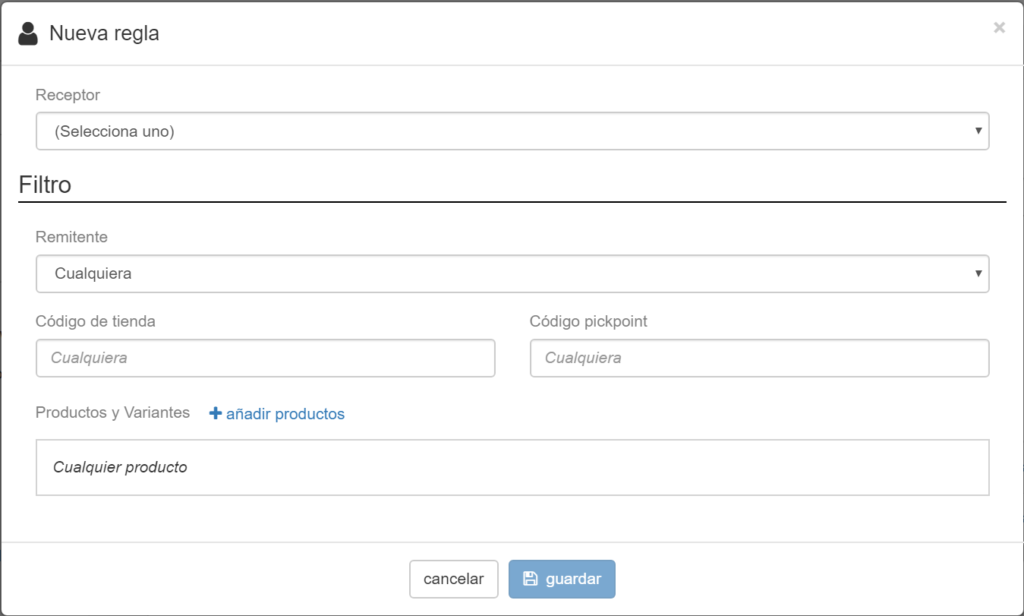
Finally, we will have to select the product codes that need to be downloaded and printed at the store.
We will click “add products” and a list of the products offered by i-moments will be displayed, where we can filter by names, codes, etc., to search for the product or products.
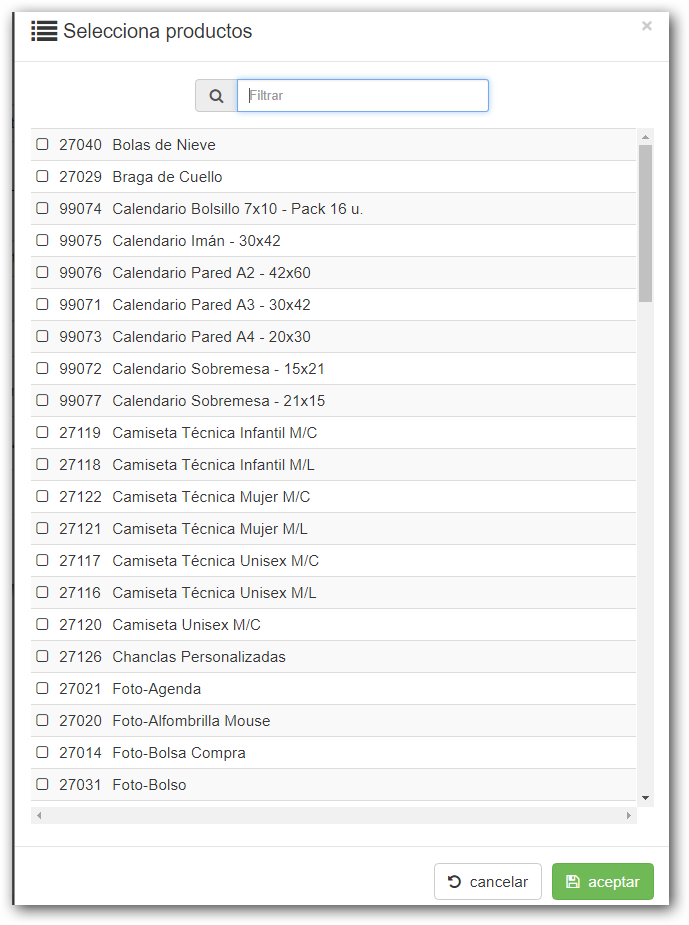
We can select all the products that will be downloaded at the store.
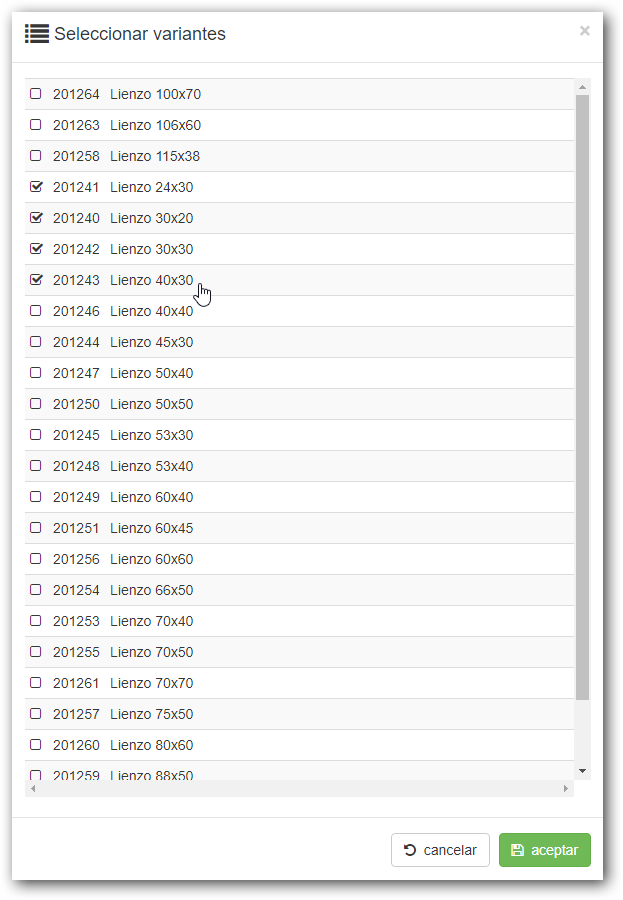
Once we have added a product, we have the option to select the variants or sizes of a product that can be printed at the store; if we do not select any, by default all variants of the product are downloaded at the store.
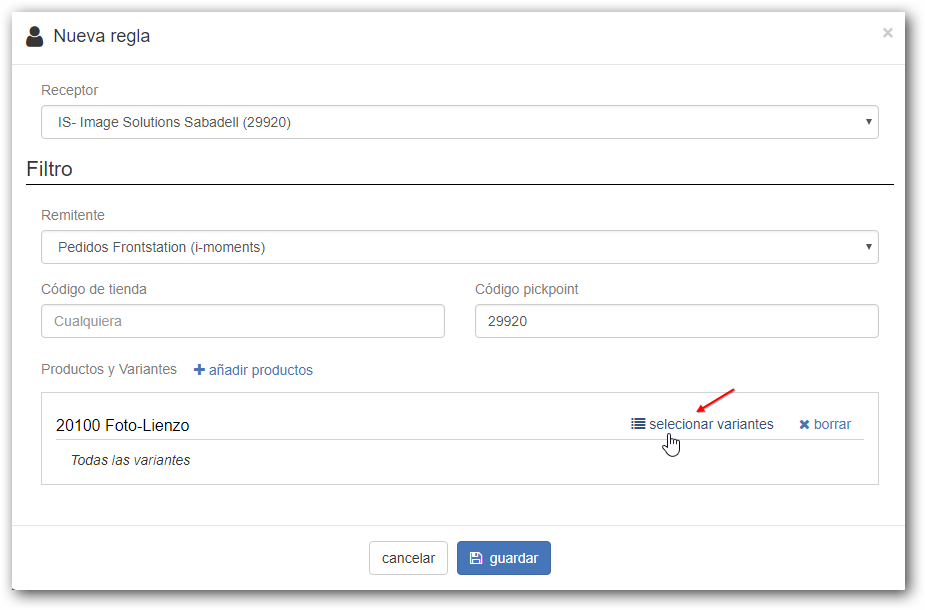
By clicking on the “select variants” option, a list with the available product variants will be displayed, and we can select the ones we want to configure for the store to download.
Values to consider based on the origin of the orders
Each order front-end or Front End has its own data management system or back office. Depending on the contracted solution, we must consider that the screens may be different.
Orders originating from PRINTSPOT
In orders originating from the PRINTSPOT solution, the supervisor has access to a back office from which site data can be configured. Within the info section, the Code for that site can be configured.
Values in the PRINTSPOT site back office
In this case, we take the store with code 547 administered in printspot as an example.
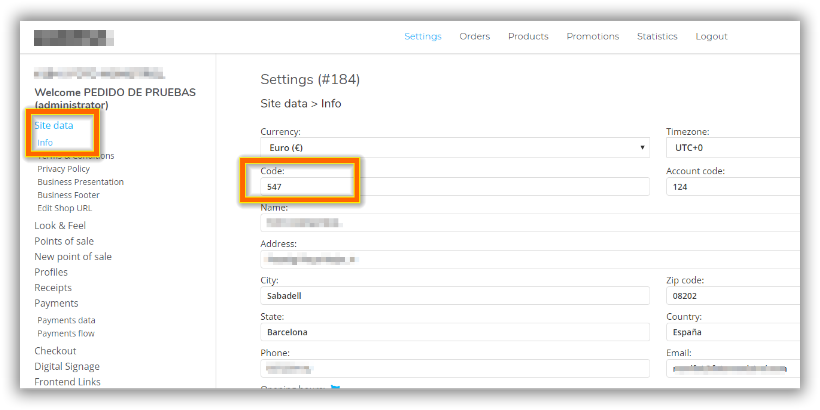
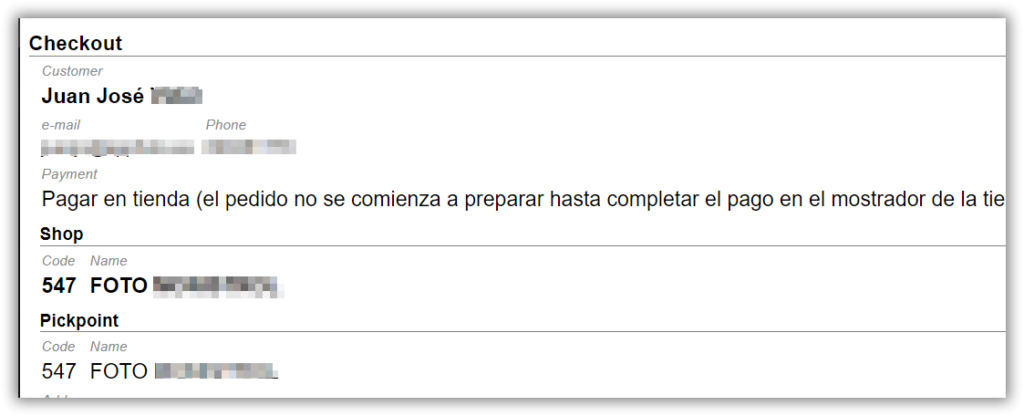
This entered value corresponds to the SHOP CODE value registered in the order within the checkout section.
Values in the DEALER back office
To check this, we have to go to the dealer’s back office by accessing the URL: https://services.imaxel.com/DEALERNAME/admin and logging in, then selecting the order in the ORDERS section.
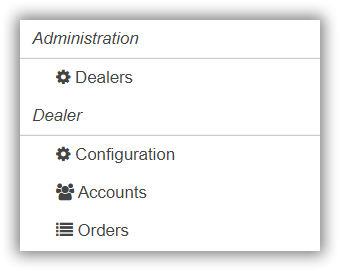
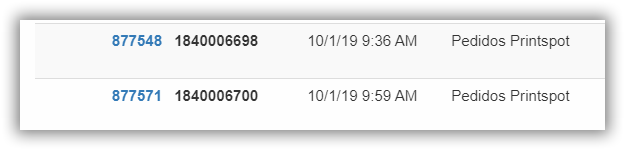
We look for the order that we previously validated from the printspot panel, and once in the list of orders, we select the order.
In the Checkout section of the order information, the Shop value – store data – is displayed, indicating the values that have been configured. In this case, 547.
Now we are going to proceed to create a Distribution Rule in this back office.
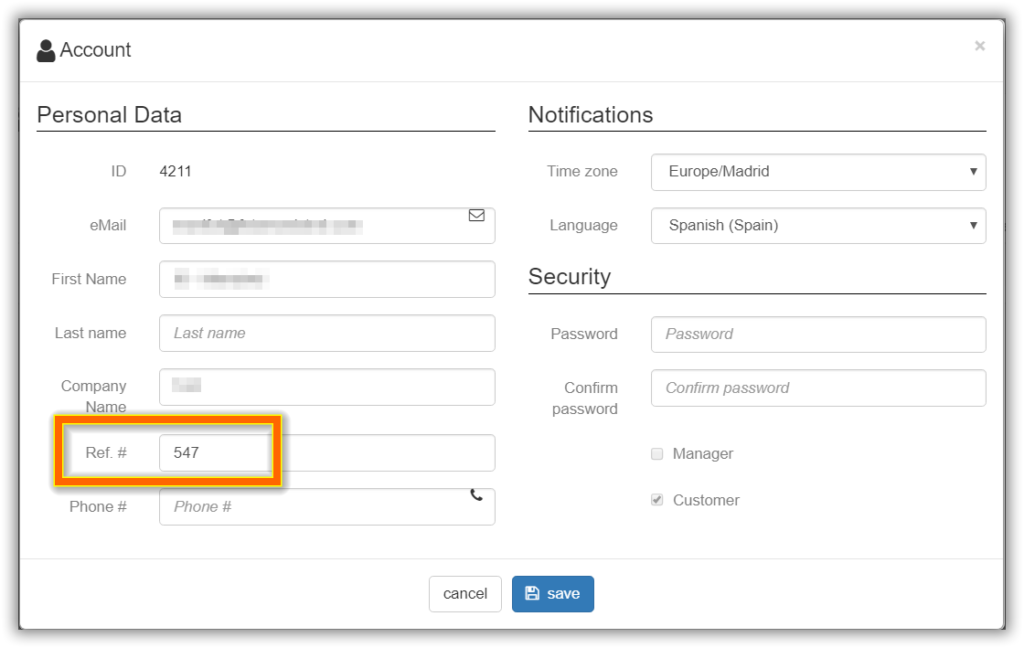
We access the account assigned to the download and add the value we administered in the CODE field of printspot to the #REF field.
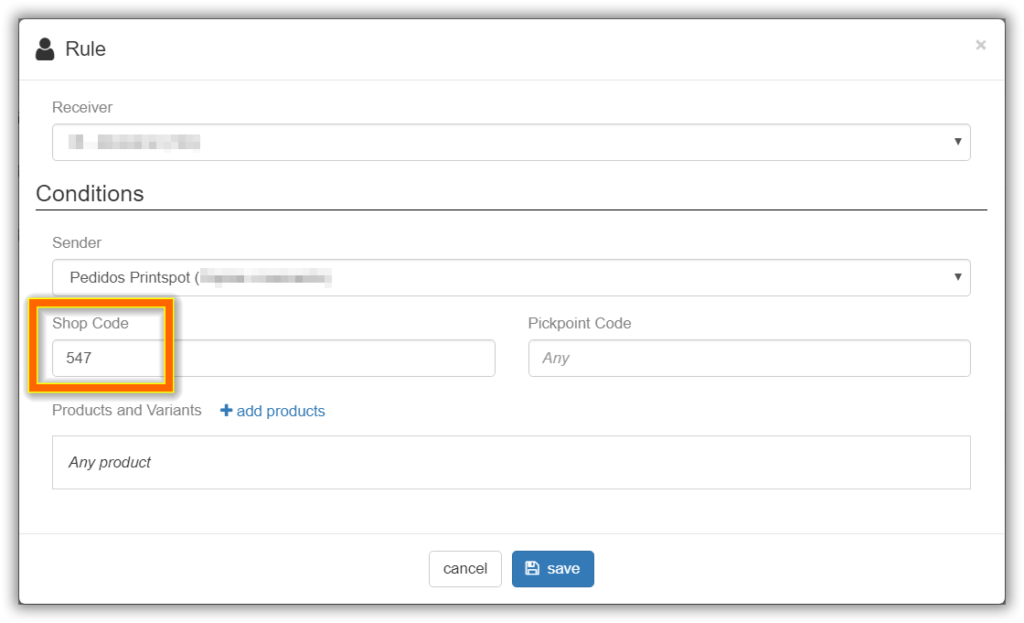
Distribution Rule Administration
The Rule will take into account the following values:
- Receiver. Account assigned for download.
- Shop Code – administered in the account assigned for download.
It must match the value administered in the Printspot back office.
If all the different configurations are correct and the values match, the Distribution Rule will act, allowing the created account to download its order. The order assigned with the rule will be available for download from its account in the installed Production Center.