
User Roles in Your Printspot Store
The profiles of an Imaxel Printspot store are the set of configurations and rules that define the store’s operation. This is where all the parameters that determine the user experience and the production flow are established.
Let’s consider an example.
Imagine that a business wants to offer its customers the possibility of receiving the order at home or picking it up at their store or one of their distribution points.
The customer accesses their Printspot, adds a product to the shopping cart, and is then presented with the following options: 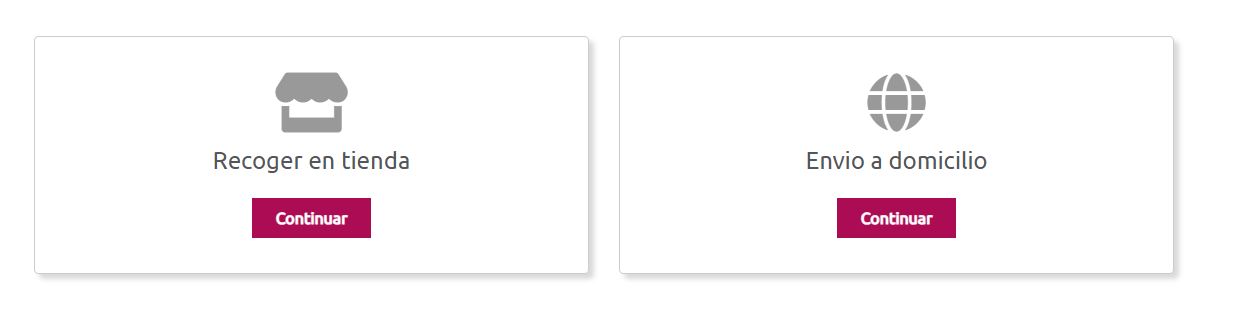
Each of these options can have its own configurations, since, for example, it makes no sense to apply shipping costs to the order or require the user’s postal address for the store pickup option.
Similarly, we can decide that for home delivery, we offer online payment via card, and for in-store pickup, we also want to add counter payment.
This would be an example of the different options we can show the customer once their option is selected:
| Configurable Option | In-store pickup | Home delivery |
|---|---|---|
| Customer data | Name, surname, phone, and email | Name, surname, phone, email, and postal address details |
| Shipping methods | Not available | One or several options or agencies depending on the destination, with their respective rates |
| Payment methods | In-store payment and Virtual POS | Virtual POS |
Printspot allows for different catalogs with different products. It is also possible to have different catalogs depending on the flow. For example, we may find that there are products that we allow the customer to pick up in-store because production is local, but others that we need to send directly to the customer because production is external. This is possible thanks to Printspot profiles.
Where can we consult the Printspot store profiles?
In the Settings – Store Profiles section.
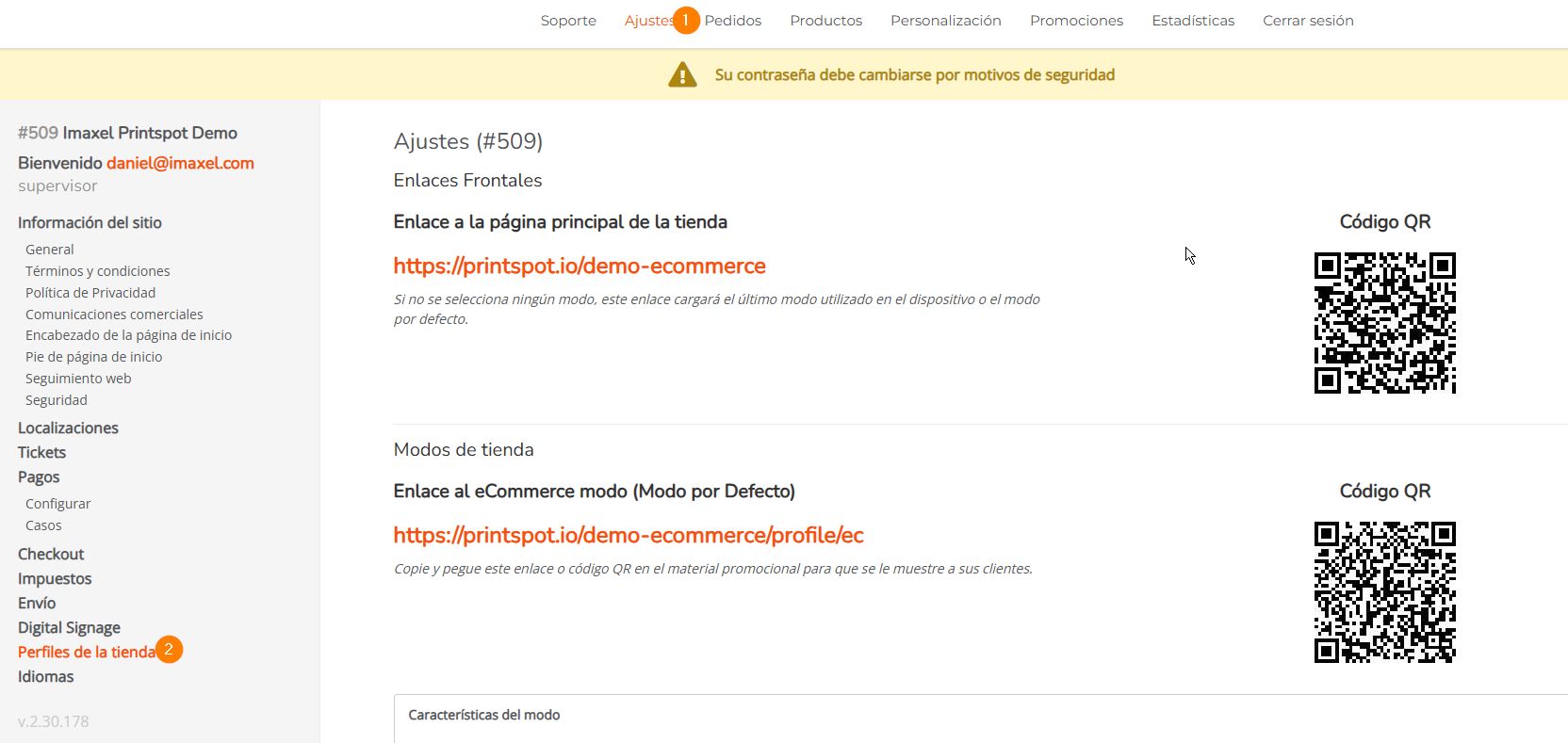
What are the standard profiles in a Printspot store?
Although Printspot profiles are extremely moldable, we offer 3 distinct profiles by default that can adapt to most cases. In Settings – Store Profiles, you can briefly see the characteristics of each one.
We will see that each of these profiles has certain characteristics enabled and others disabled.
| Ecommerce Profile | Shop Profile | Station Profile | |
|---|---|---|---|
| Home Mode | |||
| Store Mode | |||
| Shows QR code in categories and products | |||
| Shows QR code on the main page |
- Ecommerce Profile Activates Home Mode, which is designed for purchases made from home (activates shipping methods, requests postal details for shipping, etc.). The user can decide whether to receive the order at home or pick it up at the store(s).
- Shop Profile Activates Store Mode, which is designed for the user who is already in the store; home delivery is not offered.
- Station Profile Designed for Kiosks or touch screens present in the store (for direct printing copies, for example).
Want to see it live? Click here and place an order.