
Your First Printspot Order with Manual Download
To place your first order in Printspot, we are going to follow the steps below:
- Place a test order: We will access the storefront and place an order just as a user would.
- Validate and download the order: Once the order is finalized, we will access the Printspot back-office, validate the order, and download it.
Placing a Test Order
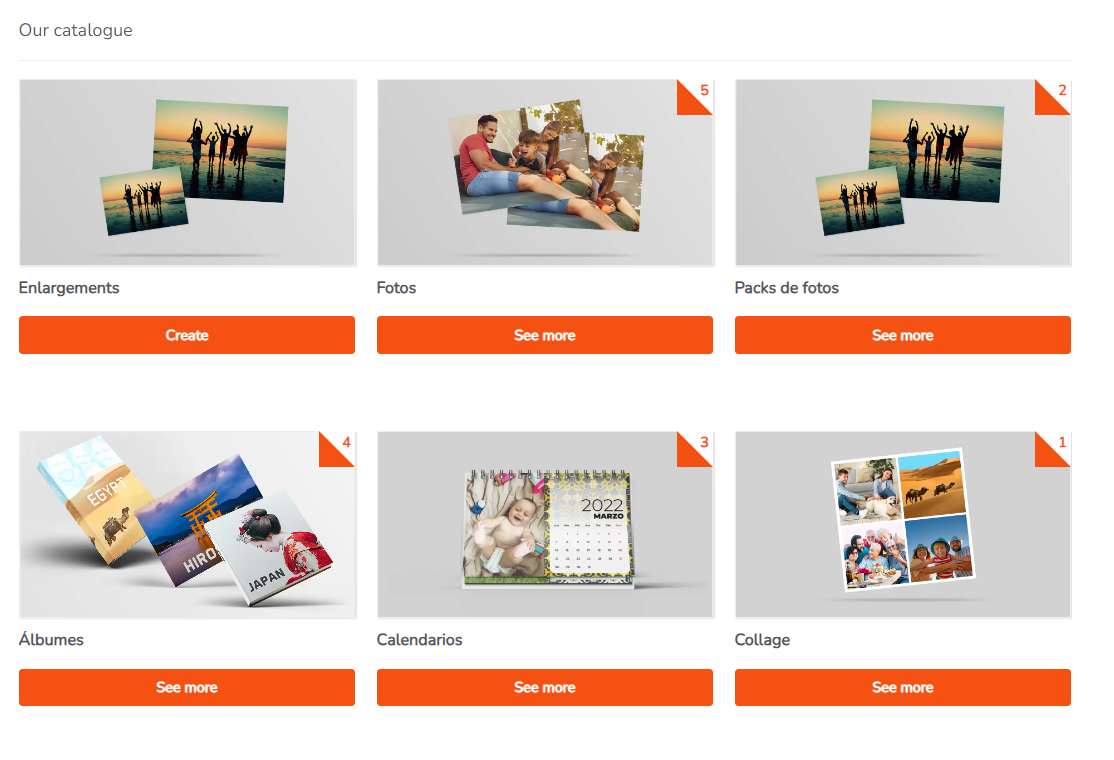
We will access the storefront of our shop, select a product from the catalog:
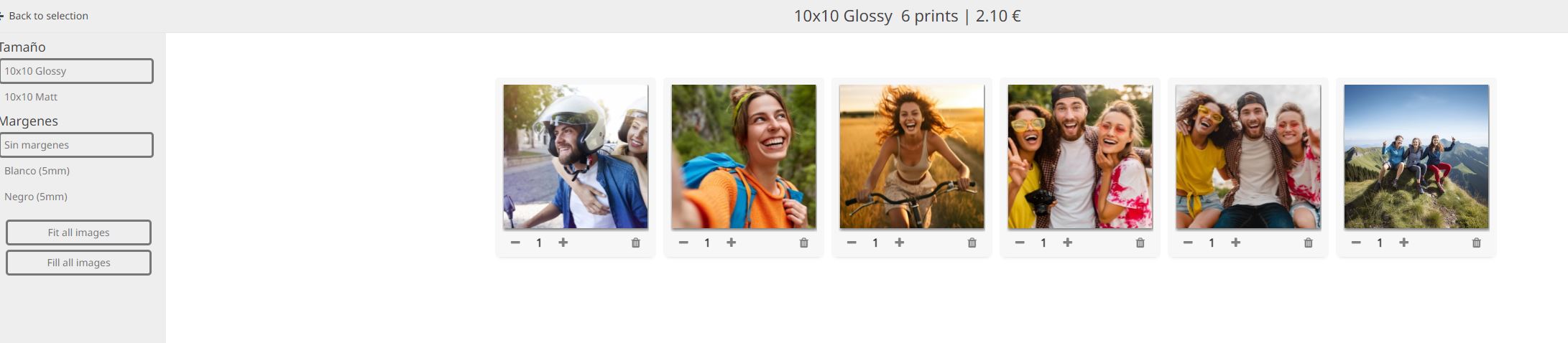
Next, we will personalize the product to our liking:
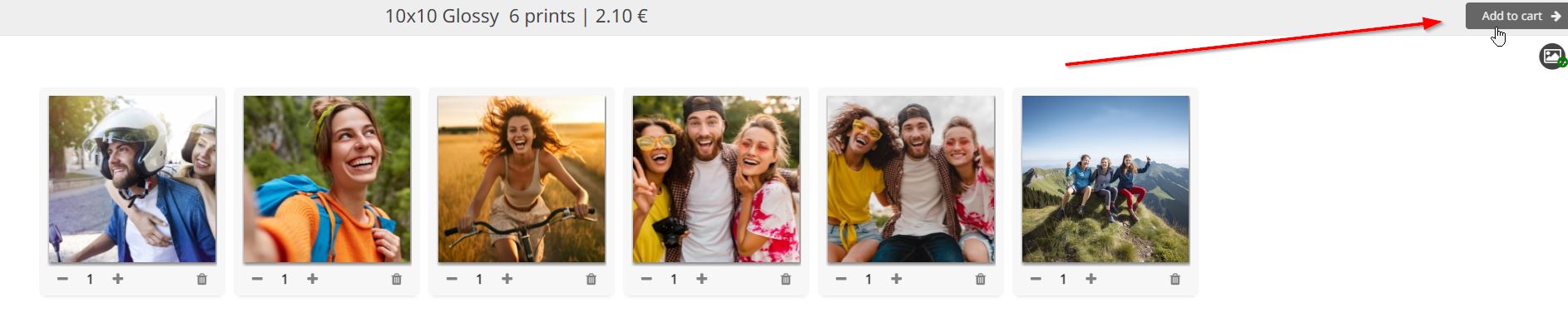 Subsequently, the cart screen will be displayed, as is common in most e-commerce sites, showing the purchase made by the user.
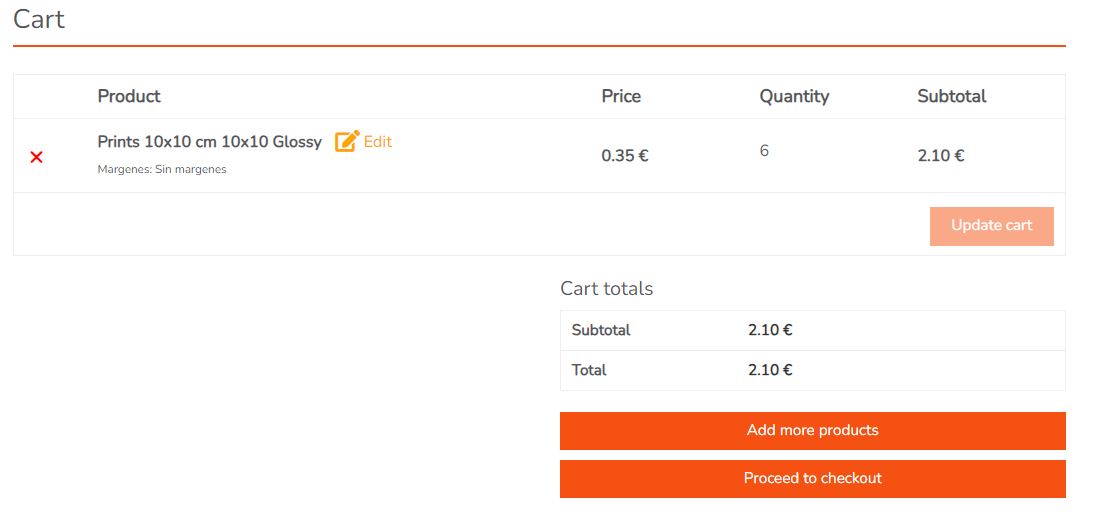 The customer will click Continuar (Proceed to checkout) to finalize their purchase.
Finally, depending on the flow the customer chooses (home delivery, pick up from store, etc.), a checkout completion screen will appear.
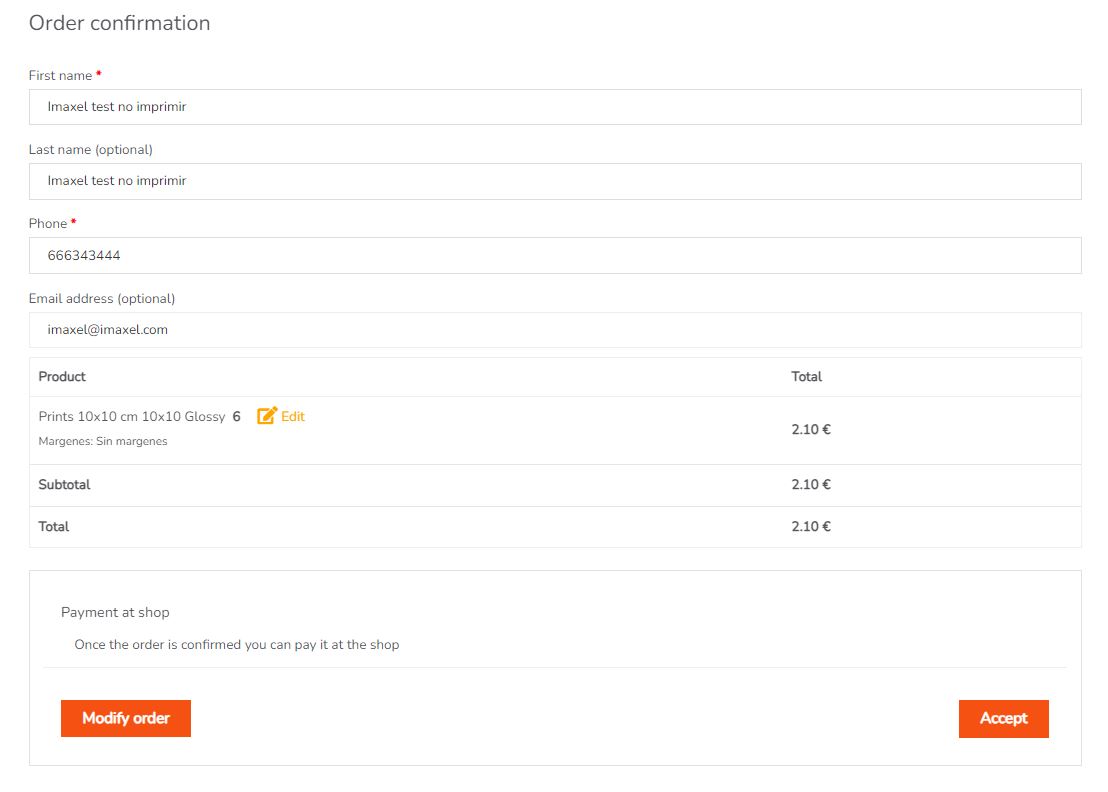 The customer must enter all necessary data to finalize the order. Finally, after clicking the Aceptar button in the bottom right corner, the purchase receipt will appear with all the order information:
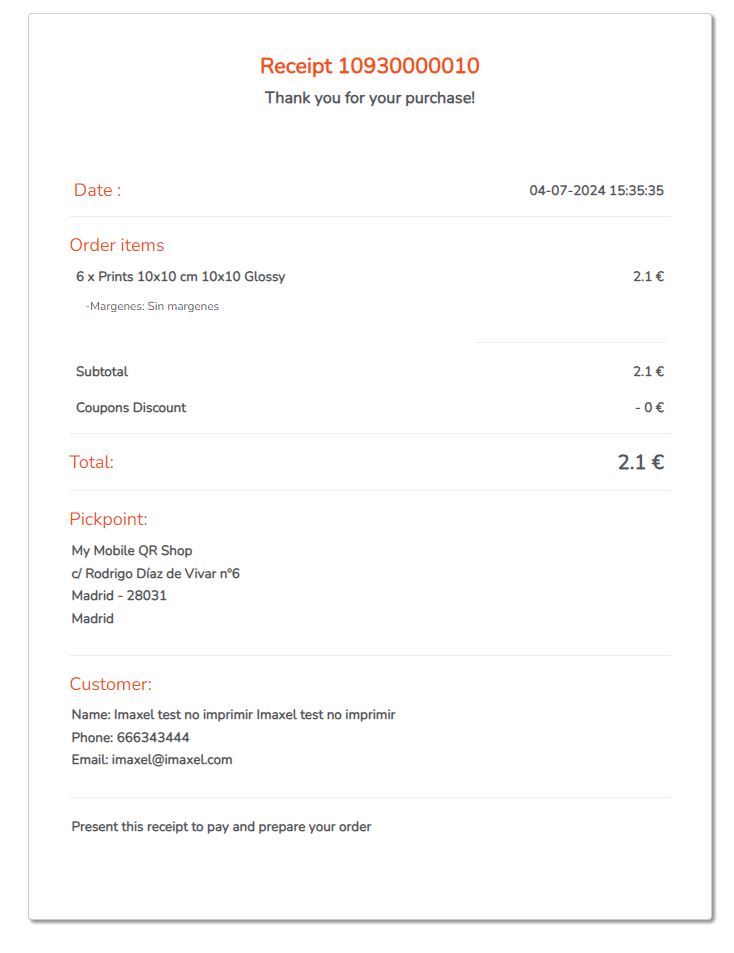
The order has been successfully registered.
Validate and download the order
Now that a customer has made a purchase, you must log in to your administration panel (or back-office) to see the status of the order.
By default, when you log in to your back-office, you land directly in the **Orders** section:
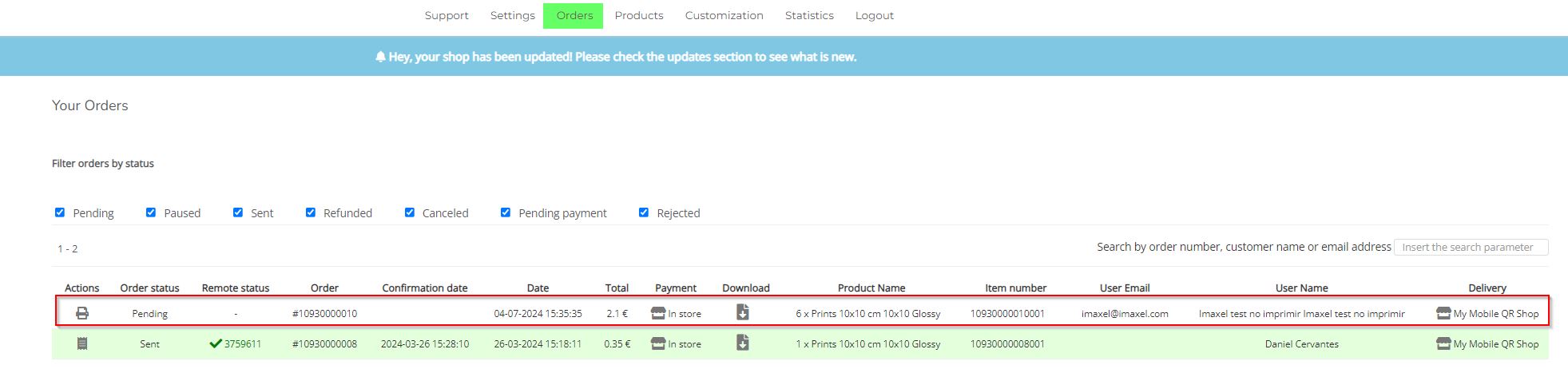 In the image above, we can see the order we just placed highlighted. In the leftmost column, an icon is available to access the different actions we can use on the order.
If we click on the printer icon, a window will emerge with all the order information, as well as the actions we can perform on it in the bottom buttons of the window.
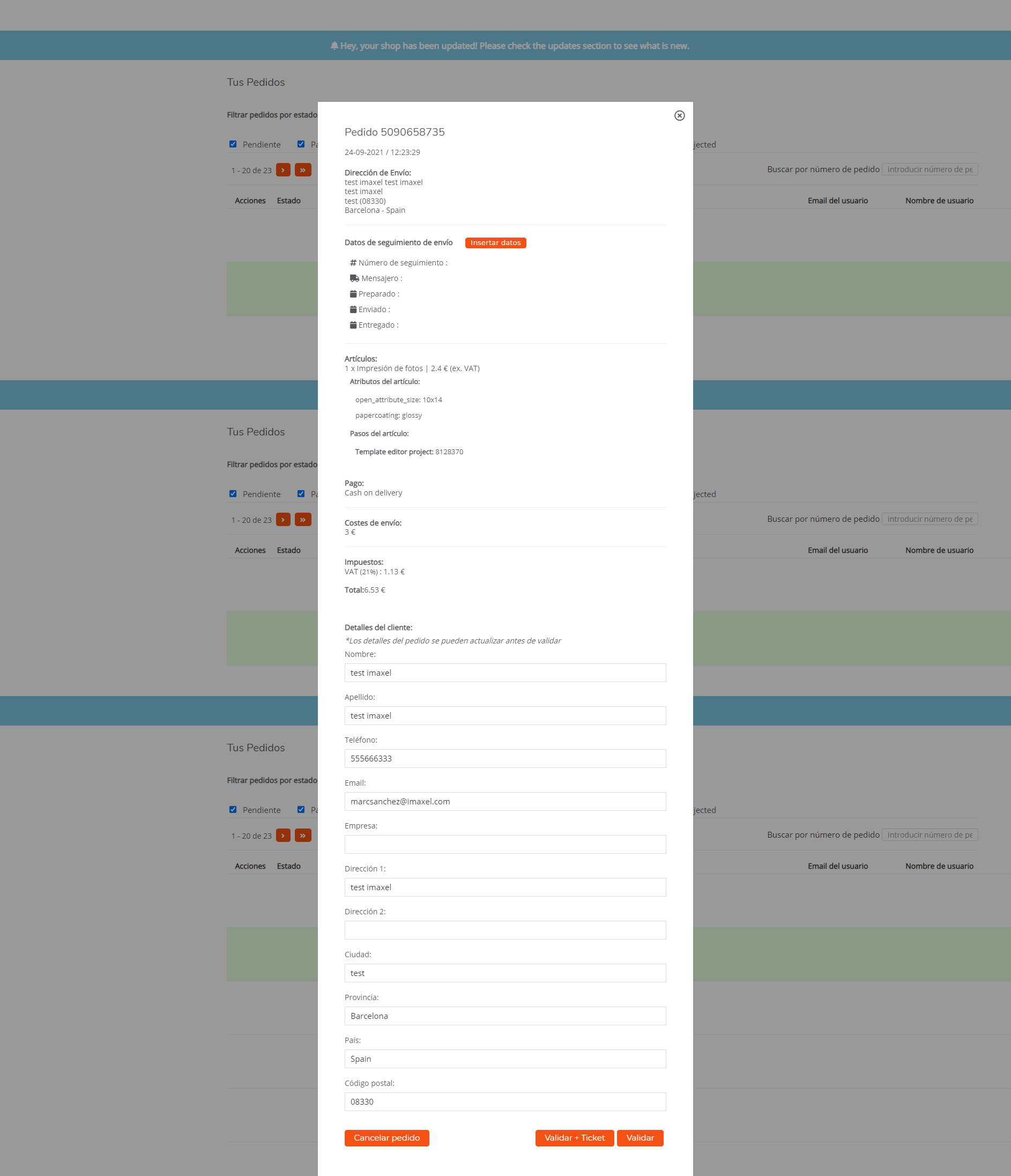
When the order has been validated (Validate button), it is sent to Imaxel’s systems for rendering and processing. Once these processes are finalized, the files are available for download in the same orders panel, as in the following screenshot:

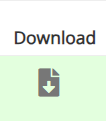
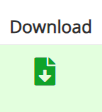
We see that a download column is available with an icon for each line of the order. Through this button, we can access the files generated by the Imaxel systems. The color of the download icon indicates the status of the order processing; there are three different color types.
- Grey: order not available for download, either because it has not yet been processed or because many days have passed pending download after being processed.
- Red: order processed and available for download, has not yet been downloaded.

- Green: when the order has already been downloaded once, it will still be available for redownload, but the system alerts you through a color legend that this order has already been downloaded, so you can quickly differentiate between orders you have already downloaded and orders you have not yet downloaded.
If we click on it, a window will open with the information for the order line to be downloaded:
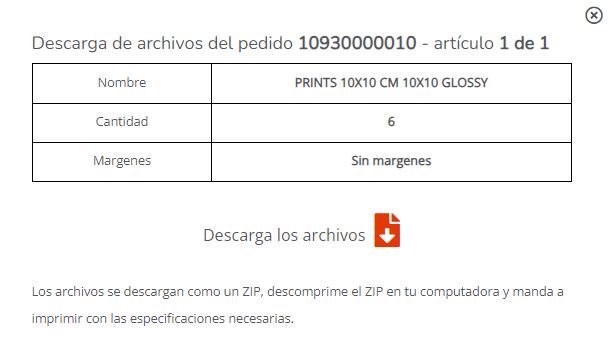
By clicking “Download files,” a ZIP file with the files generated for the order will be downloaded.