
Modifying Prices in Printspot
We have two different ways to modify the prices of our products in Printspot: modifying the price in the product template or modifying the price on the Printspot catalog page.
Modify the price in the product template
At Imaxel, we provide product templates that you can use freely, or if you wish to modify their characteristics (dimensions, output format, etc.), you can copy them to your environment and modify them as needed. If you need more information on what a product template is and how it works, we explain it here. Therefore, when you have a product template copied to your environment, you can access the template directly and change the price: 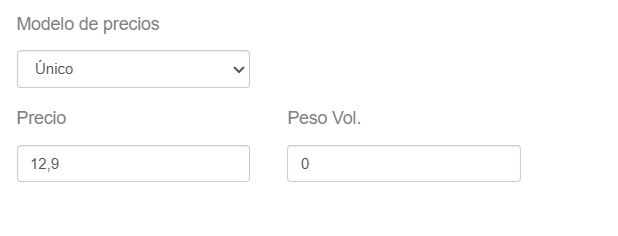 And it will be reflected in the Printspot store.
Modify the price on the Printspot catalog page
We simply need to access the product catalog, and for each of them, there is an icon to access its editing:
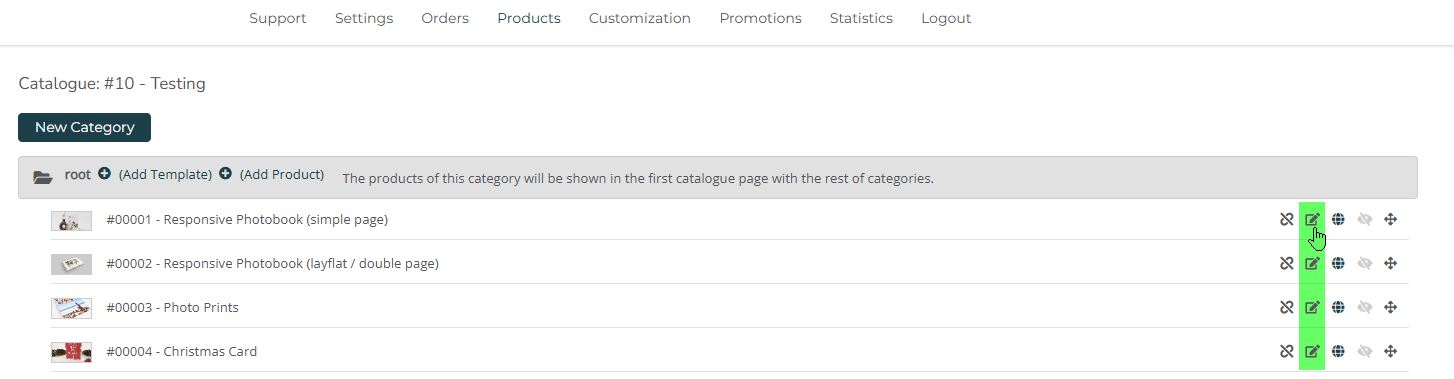
When you click, a pop-up opens with two tabs; we must access the variants tab:
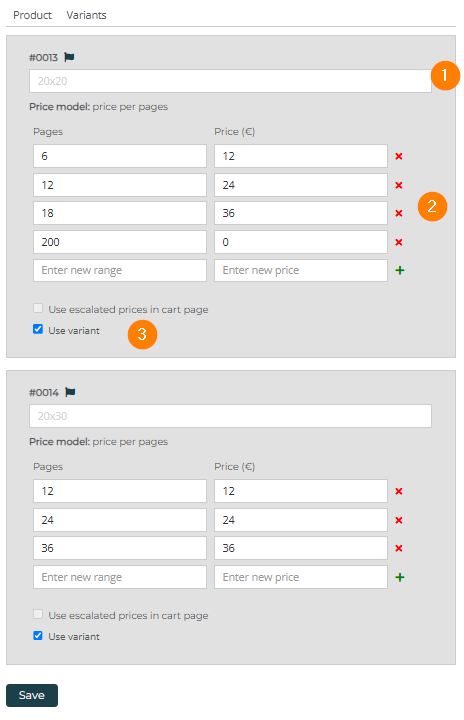
In this case, we see a product with two variants (two sizes: 20×20 and 20×30), each with its price scaling. We can modify the name (1), modify the prices (2), or make the specific variant appear or not appear in the editor (3).
Pricing Model
Each editor has its own pricing model according to its characteristics. For example, for the copies editor, we might be interested in showing a price scaling where a higher quantity means a more economical price, or prices per pack.
Similarly, selling a t-shirt with a unique price will suffice. The pricing model information is what will appear in the variants pop-up; let’s look at some examples.
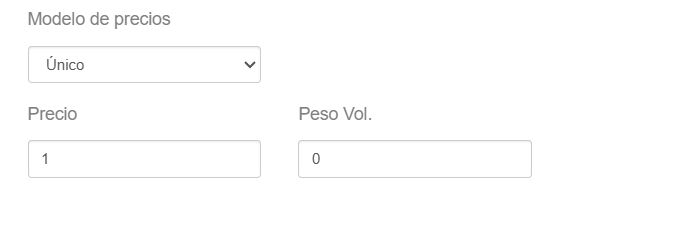
Single Price
We have a single product price:
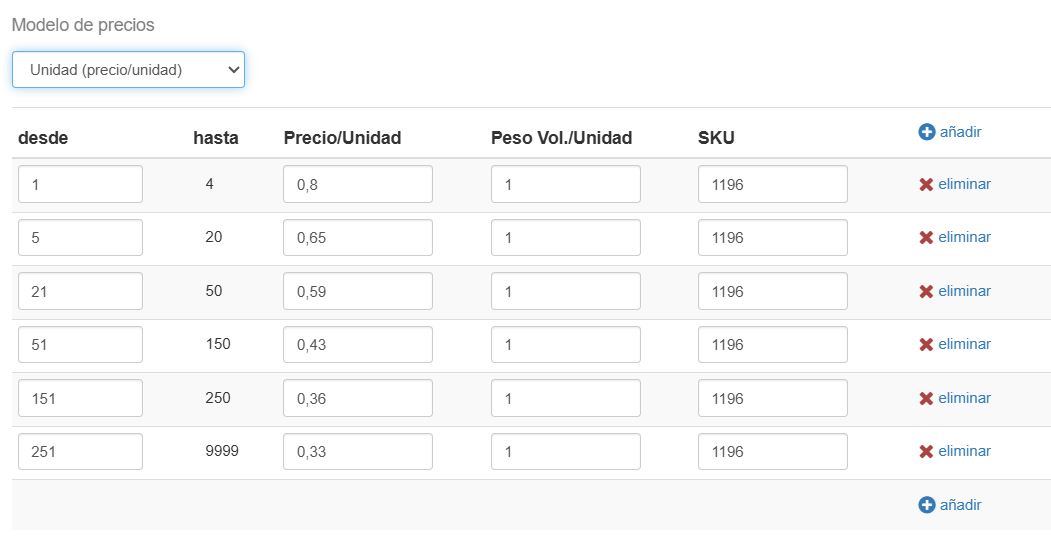
Price per Unit
We have the price per unit where we can indicate ranges: in the following example, if the user adds 1 to 4 photos, each one will cost 0.8, while if they add 5 to 20, it will cost 0.65, and so on.
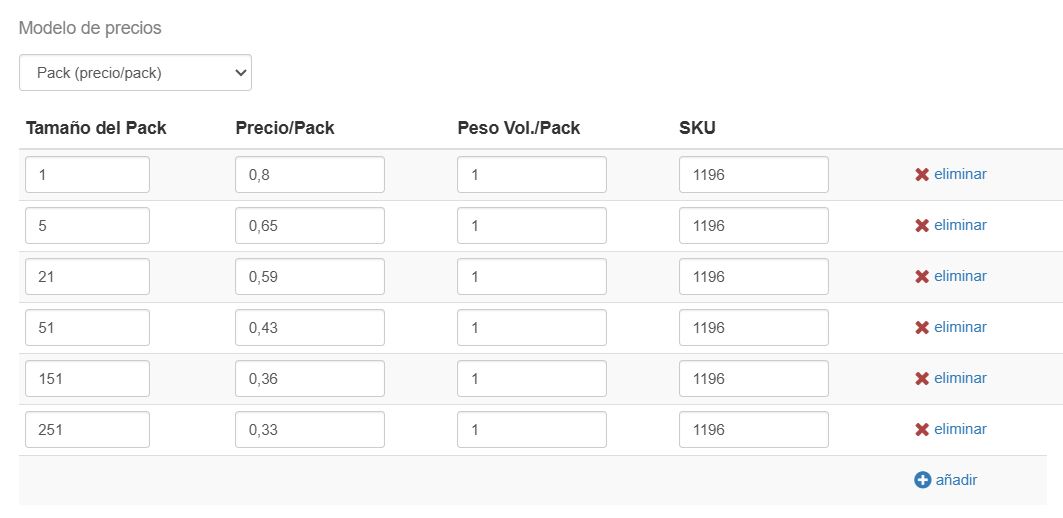
Price per Pack
Another option is the price per pack, where the user can only select the number of photos defined in each pack range. In the following example, the user can select 1, 5, 21, 51, 151, or 251 photos; for example, they cannot select 4 photos because it is not within a pack range.
Base Price + Extra
Here we have a fixed price 1 with the possibility of adding an extra 2 for each additional sheet added up to the allowed limit 3. In the following example, if the user selects one sheet, the amount will be 1; if they add another, the amount will be 1 (first sheet) + 1 (second sheet) + 2 (extra), total 4.
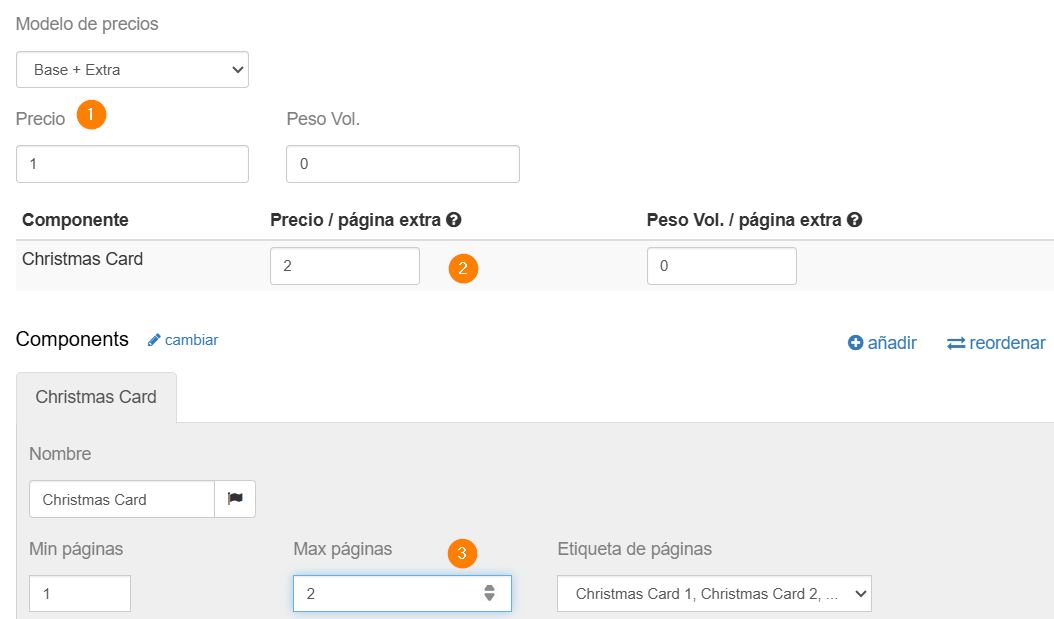
Photo Book Price
In this case, we mark the amount based on the number of sheets. Following the example, if the user adds 12 sheets, the amount will be 24. They will not be able to add 13 sheets since the next range is 18 sheets. If the range is not defined, the user will not be able to select it. 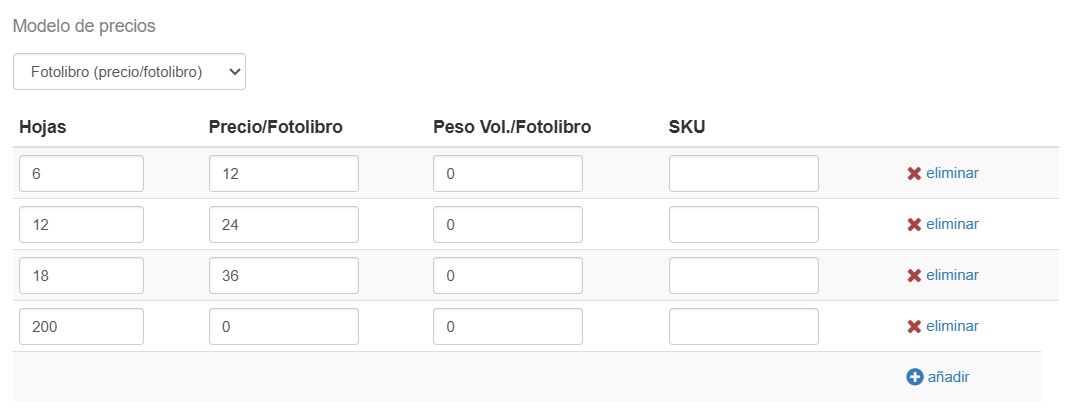
If you need more information on how the different editors work, what products you can create with them, and usage examples, check this link.
How Prices are Displayed in the Printspot Store
Once we have defined the product price, we must decide how to display it. For example, in the case of a product with scaled prices, which one do we show? The cheapest price, which requires the user to add more units, or the most expensive price for the minimum unit? We can choose what we want; we explain it in the following article.